Saturday, 24 October 2015

How To Add Join This Site widget on Blogger.

How To Add Join This Site widget on Blogger.

Hi Dohhnuttites, once again today we are posting another post on Blogger tricks and tips.
Today we are going to explain in details on how to add “JOIN THIS SITE” widget on blogger.

This widget enable your visitor to be on every updates, changes and new posts on your site. Any visitor that click this “JOIN THIS SITE” button on your site is now member of your site. This “JOIN THIS SITE” also help you to keep the mind of your readers and members on your site frequently.

To add this join this “JOIN THIS SITE” widget button on your site follow the steps below:
1. Go to Blogger
2. Click the Blog, you want to add the widget on.
3. From the blogger dashboard, click layout menu from the blogger dashboard menu.
4. On the layout menu click "Add a Gadget". Now a new window pop up.
5. Now go to second option on the new pop up window MORE GADGETS at left side you can see as below.
6. Now in search box type "join this site". and press enter.
7. Just select the option “members”.

You are done and you will see the widget on you blog.

How to Create A Simple Navigation Menu Bar On Blogger.

How to Create A Simple Navigation Menu Bar On Blogger.

Hello, everybody, Today’s post is going to shed light and reveal to us, How to create navigation Menu Bar on Blogger.

Navigation Menu Bar is an horizontal bar that categorize Posts and some important pages on your site. Before you can categorize your site or blog posts, you first have to create some posts Labels.

This Navigation Menu Bar shows and tell your blog readers that you are a professional Blogger.
Posts Label is a tag that indicate under which section or category a post or some posts belong to. With this Post label it is very easy for your readers to select their favourite Tag, Label or category of Post.

To create this menu bar, is very simple with the code am giving you today, you have different menu or link under this bar, while the home button automatically link to your Homepage and other link to the directed or created link on them, you can also change the Title of the each bar and create a link on them.


Take a look at our site Navigation Menu Bar as an example, this is the bar that link to each category and some page on our site. If you click on WordpressBloggingTricksDownload, and Trends are the menu bar links that link to some of our posts category, while About UsContact UsPrivacy PolicySitemap and Forum are the menu bar link that link to some important pages on our site.
To create a Navigation Menu Bar for your Blog site follow the steps below,

Step by step:

1. Go to Blogger

2. Click the Blog, you want to add the widget on.

3. From the blogger dashboard, click layout menu from the blogger dashboard menu.

4. On the layout menu at the header or cross column bar, click "Add a Gadget". Now a new window pop up.

Now copy the code below:

<!-- begin navigation menu -->

<div id="stickynavbar">
<ul>
<li><a title="home" href="LINK">Home</a></li>
<li><a title="TITLE" href="LINK">PAGE TITLE</a></li>
</ul>
</div>

<!-- end navigation menu -->

5. Paste your code into the new pop up window "Content Space"
6. From the code above four menus were being created, if you like you can copy this code
<li><a title="TITLE" href="LINK">PAGE TITLE</a></li>
To the numbers of menu you want.
7. Change the “Title” with the title of the Menu that will appear on the Bar, change the
“LINK”to the you want to link the menu to.
8. Now click save and you are done.
Now you will see that cool Nav-menu bar on your blog.

Friday, 23 October 2015

How to Automatically share Blog Posts on Social Media | Twitterfeed.

How to Automatically share Blog Posts on Social Media | Twitterfeed.

Hello Dohhnutties, today again am posting again on a topic that relate to some of my past posts. As you’ve all know that on this site we are mainly into Tricks, Tips, Cheats on Blogging, Wordpress and Internet (Social Media) as a whole.

Today’s post is going to explain to us about how to use Twitterfeed to feed your Blog or Site Posts on Social media automatically. As we all know that to be a successful blogger and online businessman you have to promote your brand or content online, you need social media intervention to promote, advertise your brand and the content on your site to reach your audience and to generate (massive) traffic.

Many Bloggers and online businessmen face the challenge of sharing their posts on social media and it also waste their time, energy and resources. In order to ease this we recommend this Automatic Post Sharing App Twitterfeed is a free software program that lets you “automate” the syndication of your blog posts and articles from your website to your social media accounts. Just try it and i believe you will glad you did, because we too, we are using this Automatic Post Sharing App Twitterfeed for our site.

To signup for this Twitterfeed, you must make sure that you have an RSS feed that link to your website or blog.

You can get RSS feed for your blog and website here and you can also get RSS feed subscription form too here.

New to Twitterfeed, here’s a step by step guide on how to link your social media accounts to this tool.


1: Go to Twitterfeed.com
2. Signup for a free account. (After you've created the account, you will receive an email confirmation that asks you to “Activate Your Account”.
3. After the activation of your account, now login to Twitterfeed with your username and password.


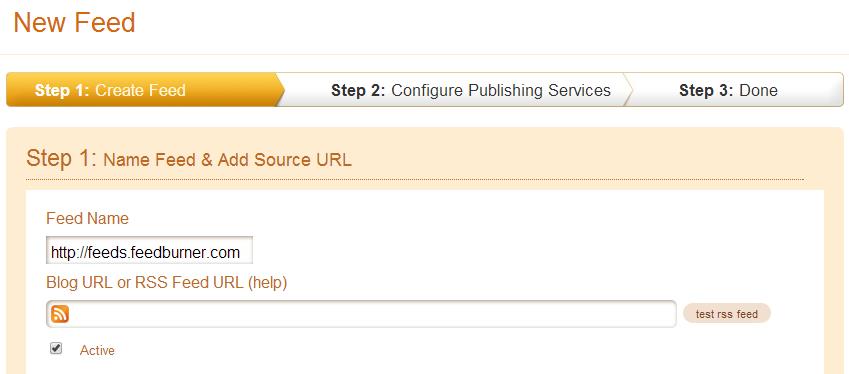
4. Click on the “Create new Feed Button”


5. Fill in your RSS feed URL or RSS Fees Name "Your feeds Url should look like this: https://feeds.feedburner.com<YourFeedName>
6. Click on “Test RSS Feed” to verify that you enter correct RSS Feed name.
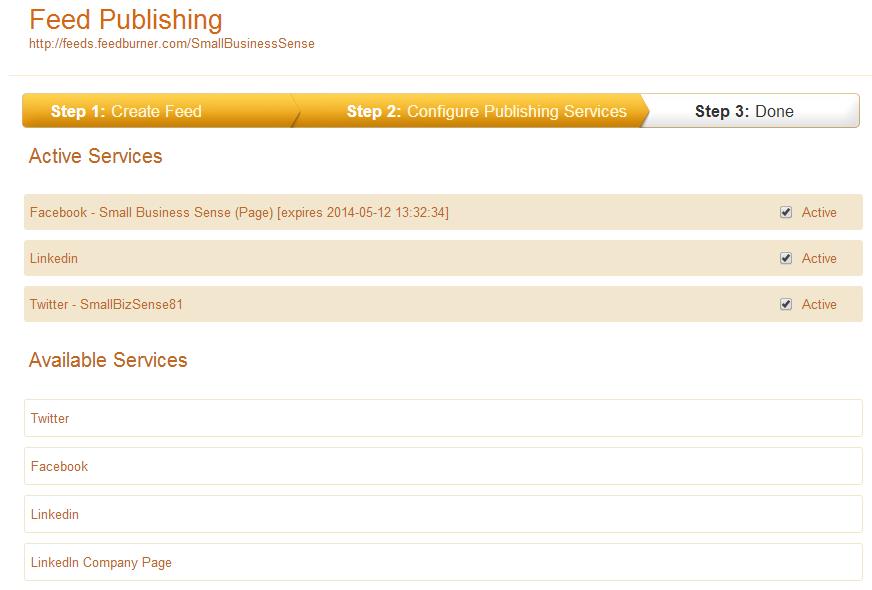
7. To continue click on the “Configure Publishing Services" Button.


8. Now you will see the available services in this menu, Twitter, Facebook, and LinkedIn. Now to link your website RSS feed enter your social media profile requires in the popup dialog box, for each services after entering your profile now click on the “Authenticate Account” button for each of the social media profiles.
9. After you have finished linking your accounts to Twitter Feed, click the "Done”button.
Now will you will start seeing your blog posts and updates from your website linked to your social platforms.


You can subscribe for our latest posts here

Enter your email address:

Delivered by FeedBurner


If you have any challenge, here is a video tutorial on how to setup Twitter Feed. 
                                    

Thursday, 22 October 2015

How to add Sliding Floating Facebook Like box in Blogger.

How to add Sliding Floating Facebook Like box in Blogger.

I have written so many posts on how to use social media buttons on blogger and wordpress (site). The first mindset before publishing any post is to give readable and catching post for your readers to read, they will still intend to come back to read any of your new post, with facebook like buttons you can keep them update with just only one click. 

The Facebook is one of the top social media network through which massive traffic can be generate for sites and for the promotion of  site content and brand. 

Am going to show you another facebook like box widget, which slide in and out  from the left or right side of the site depending on your desire side as it is on our site. 

With just one click to like your facebook fan page it will make your visitor to become regular reader just by clicking like button. And also the box will also increase the numbers of your facebook fans. It is easy to add to blogger without affecting any existing widget (s) on the site.

Importance of Facebook likes For business and Brands

To get this widget for your site kindly follow the steps below:


1. Go to Blogger
2. Click the Blog, you want to add the widget on.
3. From the blogger dashboard, click layout menu from the blogger dashboard menu.
4. On the layout menu click "Add a Gadget". Now a new window pop up.
Now copy the code below

 <style>/*crawlist.net CSS starts*/
.ks-slide {
  position: fixed;
 top: 200px;
  right: 0;
  -webkit-transition-duration: 1s;
  -moz-transition-duration: 1s;
  -o-transition-duration: 1s;
  transition-duration: 1s;
}
.ks-box{
  height:270px;
  width:266px;
  border:2px solid #444444;
  border-radius:5px;
    -moz-border-radius:5px;
    -webkit-border-radius:5px;
  background:#fff;
  position: fixed;
 top: 200px;
  right: -265px;
  -webkit-transition-duration: 1s;
  -moz-transition-duration: 1s;
  -o-transition-duration: 1s;
  transition-duration: 1s;
}
.ks-slide:hover {
right:265px;
}
.ks-slide:hover .ks-box{
  right: 0;
}/*crawlist.net CSS ends*/</style>

<div id="fb-root"></div>
<script>(function(d, s, id) {
  var js, fjs = d.getElementsByTagName(s)[0];
  if (d.getElementById(id)) return;
  js = d.createElement(s); js.id = id;
  js.src = "//connect.facebook.net/en_US/sdk.js#xfbml=1&version=v2.0";
  fjs.parentNode.insertBefore(js, fjs);
}(document, 'script', 'facebook-jssdk'));</script>

<div class="ks-slide">
  <img src="https://blogger.googleusercontent.com/img/b/R29vZ2xl/AVvXsEgKM06HkZa51FPBrZMS7a0uHdf6G8XlP7RMYtWMqvVCqzGEqO8WQIzbzN5v4fBRqOoJWQAlFfdwHQQEgABHKZLJodYKSEJdQ8o6LWUzLDlSXqPdRLet-3jgpF3fpIxuOw0rRJz5dZYzTXk/s1600/m.png" />
  <div class="ks-box">
<div class="fb-like-box" data-href="http://www.facebook.com/dohhnutt" data-width="265" data-height="265" data-colorscheme="light" data-show-faces="true" data-header="false" data-stream="false" data-show-border="true"></div> 
  </div>
</div>

5. Paste your code into the new pop up window "Content Space"

How to add Facebook like box in wordpress – FB fan box for wordpress

Note: Replace my facebook page URL with your page URL, You can also change the Width And Height of the widget to your own desire size.

4. Now click save and you are done.


You can also like us on Facebook

Wednesday, 21 October 2015

How To Upload/Install A New Template To Blogger

How To Upload/Install A New Template To Blogger

How To Upload/Install A New Template To Blogger

You are all welcome back to Dohhnutt Platform, hope you guys all enjoy all last week Posts, Tips, Tricks and Cheat. Today’s Post is in reference to one of the Frequently Ask Question (FAQ) “ How To Upload/Install A New Template To Blogger” from some of our Blog readers.

Today am going to explain in details and simple steps to take when you are trying to upload a Third Party Template or New Advance Beautiful Template on Blogger.

As a blogger you must have the motive of satisfying your readers in all sense, especially in term of catching and effective Content on your site and it must also be of good content.

Your blog design will also touch the heart of your readers and encourage them to come back to your site to view that your beautiful layout and arrangement of your site sidebar, main post, header and footer design.

Hope we have all knew the importance of beautiful template on our blog and good content to attract and bring back our visitors to our blog.

Before you upload a new template on your blog, you are advise to first backup your blogger template to prevent any lost on gadgets, arrangements or any other important contents on your blog, you can also make complete backup of blogger.

Just follow the steps below to upload a New Third Party Template on your Blog.
1. Go to blogger.com.
2. Click on the blog you want to add the template on, to go to it’s dashboard.
3. On the dashboard menu click on Template menu.


4. On the template menu, click the Backup/Restore button at the top on right side of the template
menu dashboard.


5. A new window will pop up, from the pop window, You are advise to first click Download template button to save a copy of your existing template on your computer in case of any mistake.


6. To further with the upload, click the Choose File button.

7. Locate where you download the new template or where you drop your new template on your computer.


8. Now after you have select the new template, click on upload after some minutes the new template will appear on your blog.

Hope it is helpful if yes comment below in the comment box below.